Initial App Setup
Below we outline the recommended process for configuring the iPad and app(s). Consider this a Quick Start guide to setting up and commencing any of the Toolbox apps.
1. Turn off multi-touch gestures: Multi-touch gesturing can lead to unexpected performance of the app. This should be turned off in the iPad’s Settings app by selecting General -> Multitasking & Dock -> Toggle off 'Allow Multiple Apps' and ‘Gestures’.
2. Open the EYT app. To configure the app, open the Settings Menu by pressing the ‘gear icon’ located at the bottom right of the app’s home screen and tap 'App Settings'. There are a number of fields and functions that will likely be of interest, as described below. Note: These settings only need to be entered once and will remain configured until they are changed in the settings menu.
3. Populate the Study Name. This field allows you to allocate data to a particular purpose or study, which will come in handy if the app will be used for various purposes.
4. Modify game settings. While all of the apps, by default, are set in the configuration in which they were validated, some apps allow you to modify these if desired. Mr Ant, for instance, allows you to present stickers concurrently (default), in forward order or in backward order. Go/No-Go allows you to alter stimulus numbers and durations. It should be considered, however, whether/how alteration of settings might influence the properties of the task and data generated. The default settings for all of the apps are those with which the apps were validated.
5. Select the desired language. The apps are being translated into an increasing number of languages, thanks to our international collaborators.
6. Turn on/off child performance charts. For those interested in situating the child’s performance within age expectations, based on our preliminary norms and subsequent data collections, toggling this functionality on will graphically situate a child’s result along a continuum of performance for their age. This requires the child’s age to be entered alongside the Child ID.


Starting the Task
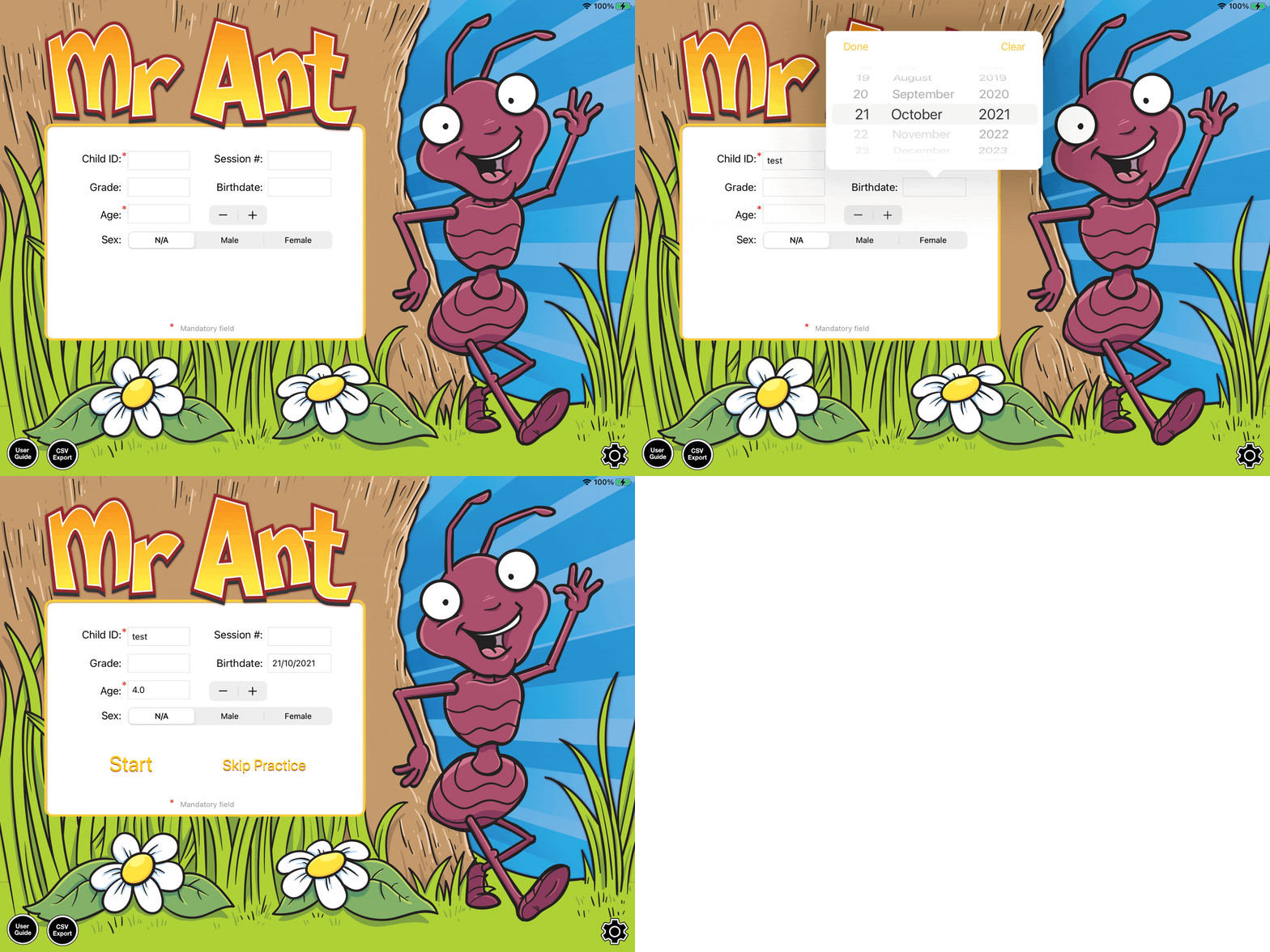
1. Enter a Child ID comprised of any combination of letters and/or numbers. For researchers, this is likely an anonymised alphanumeric code. For educational purposes, this might be a child’s name.
2. Specify the child's age. This can be entered as a date of birth (from which age is calculated), typing in an age (in years) or using the age stepper. If Child Performance Charts have been turned on, the app positions the child's performance against Australian benchmarks within half-year age groups.
3. Once these mandatory fields are populated (and any other optional fields you require), tap ‘Start’ or ‘Skip Practice’. ‘Start’ will begin the full task, including instructions and practice. ‘Skip Practice’ will present only brief instructions (and no practice trials), which may be useful in cases of a repeat administration when the child is already familiar with the task expectations.